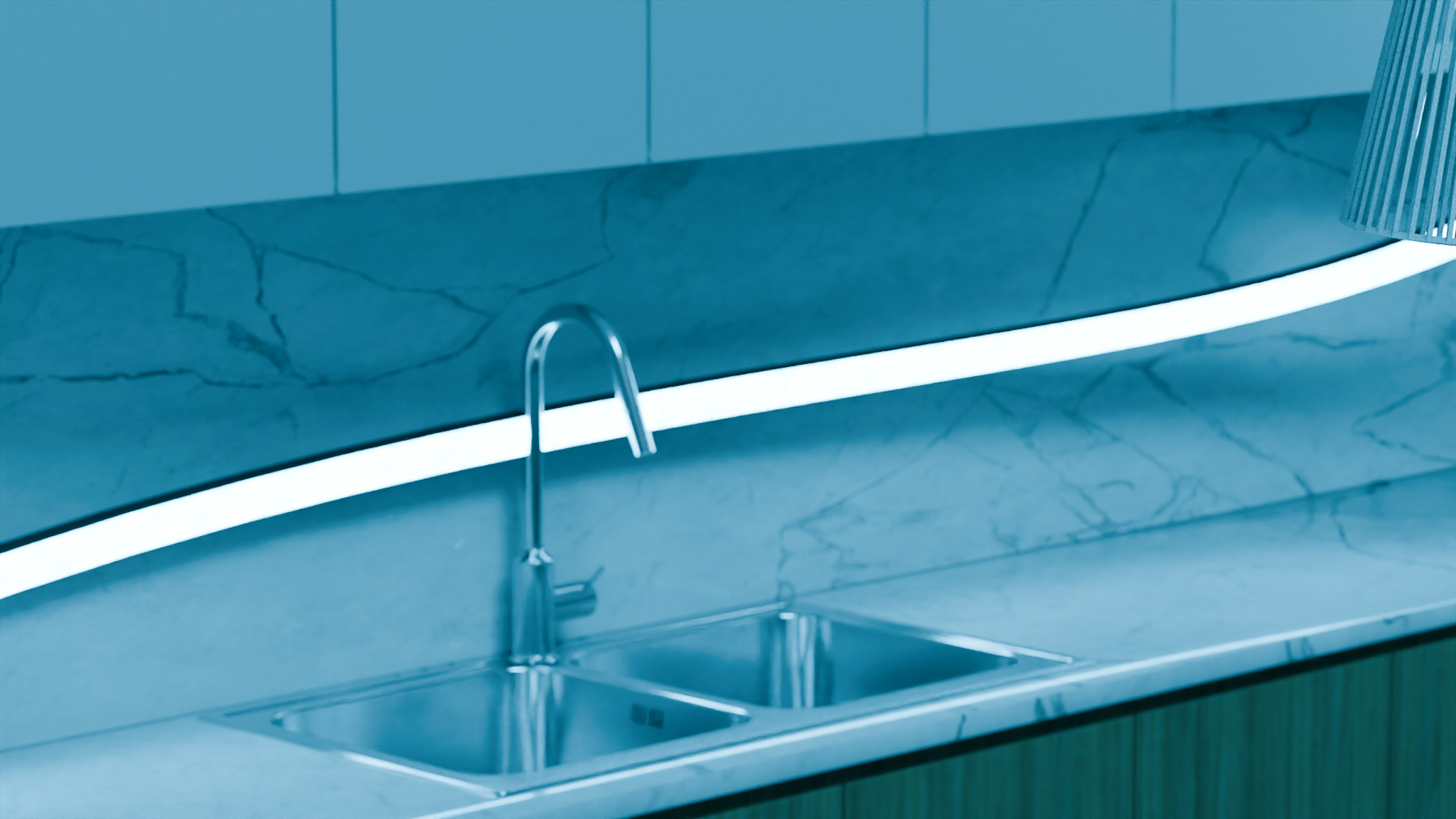
WLED Setup Guide for Supa Strip & Aura Strip Rooms
WLED turns Supa Strip and Aura Strip from “just LED strips” into a whole-room lighting system – with scenes, presets, segments, and smart control that lives entirely on your network. You get the flexibility of individually addressable LEDs with the convenience of a friendly web UI.
This guide focuses on practical WLED setup for Supafire-style 12V builds:
- Supa Strip – 3-side neon, CS8812 RGBW 4000K, 144 LEDs/m
- Aura Strip – high-density 96 LEDs/m RGBW workhorse
We’ll walk through how to plan LED counts, choose controllers, set up segments, and build room presets that feel intentional instead of random.
Always follow local electrical codes. If you’re unsure about mains-voltage wiring, consult a qualified electrician.
Key Takeaways
- WLED runs on ESP32/ESP8266 controllers and is ideal for Supa Strip and Aura Strip.
- Treat WLED as the brain, not the power source; 12V PSUs still carry the load.
- Plan your LED counts and layout first, then map them to WLED segments.
- Use power limits and brightness caps to keep high-density 12V strips safe and cool.
- Build a small set of high-quality presets instead of endless random effects.
Step 1: Plan Your Physical Layout First
WLED is extremely flexible, but it can’t fix a confusing physical layout. Start on paper:
- Draw your room or project (top-down or front-on).
- Mark where you’ll place:
- Supa Strip (visible neon lines, wall/ceiling outlines, logos)
- Aura Strip (coves, behind TVs, under desks, inside furniture)
- For each strip, note:
- Approximate length in meters
- Whether it’s visible or indirect
- Where the controller and PSU will live
Example simple layout:
- 5 m Supa Strip around the top of the main wall.
- 5 m Aura Strip behind the TV and media unit.
- WLED controller and 12V 20A PSU in a corner cabinet.
Once you’re happy with the layout, you can translate it into LED counts and WLED segments.
Step 2: Count Your LEDs (Supa vs Aura)
WLED needs to know how many LEDs it’s controlling. With high-density strips, that adds up fast.
Approximate counts:
- Supa Strip: 144 LEDs/m
- Aura Strip: 96 LEDs/m
Quick math examples:
- 5 m Supa Strip → 5 × 144 = 720 LEDs
- 5 m Aura Strip → 5 × 96 = 480 LEDs
- Total = 1,200 addressable LEDs
That total LED count is well within what an ESP32 running WLED can handle in most real-world setups.
Keep a simple table in your notes:
| Strip | Length | LEDs/m | Total LEDs |
|---|---|---|---|
| Supa Strip | 5 m | 144 | 720 |
| Aura Strip | 5 m | 96 | 480 |
| Total | – | – | 1,200 |
You’ll use this table when you define WLED’s LED count and segments.
Step 3: Choose a WLED Controller & PSU
Controller: ESP32 Preferred
You want a WLED-compatible board, commonly:
- ESP32-based controller (recommended for high LED counts)
- Optional features like:
- Onboard level shifter
- Multiple data outputs
- Screw terminals for power and data
An ESP8266 can work, but with 1,000+ LEDs and multiple segments, an ESP32 gives you more headroom and smoother performance.
Power Supply: 12V 20A or 40A
Supa and Aura are 12V strips, so your PSU should match:
- 12V 20A (≈240 W) – good for small/medium rooms.
- 12V 40A (≈480 W) – for larger builds or if you want future expansion.
Use planning numbers for power:
- Supa Strip (144 LEDs/m): ~24 W/m (planning estimate)
- Aura Strip (96 LEDs/m): ~16 W/m (planning estimate)
Match your total wattage to about 70–80% of PSU rating for continuous use.
Example from earlier (5 m Supa + 5 m Aura):
- Supa: 5 × 24 W/m = 120 W
- Aura: 5 × 16 W/m = 80 W
- Total = 200 W
On a 12V 20A (240 W) PSU, that’s within range, especially since real usage is rarely full-bright white all the time. On a 12V 40A, you have lots of headroom.
Step 4: Wire the System (Low-Voltage Overview)
We’ll stay at the 12V / low-voltage side here; mains wiring needs a qualified person.
Basic relationships:
- The PSU feeds 12V and GND to all strips.
- The WLED controller shares the same GND and sends data.
- You use power injection on longer runs to reduce voltage drop.
Conceptual diagram:
[AC Mains] --> [12V PSU] ----------------------+----> +12V to Supa
                                          +----+----> +12V to Aura
                                          |
                                         GND------------------+
                                                              |
                                                     [ESP32 WLED]
                                                     |   |
                                                   Data GND
                                                        |
                                                 to Supa/Aura data-in
Key rules:
- Everything shares ground: PSU GND, controller GND, strip GND.
- Keep data lines short and tidy; use twisted pair with ground if runs are longer.
- Plan power injection for every 3–5 m of high-density strip as a starting point.
Step 5: Initial WLED Setup (Web UI Basics)
Once you’ve flashed WLED and powered the controller:
- Connect to WLED’s Wi-Fi access point or find it on your network.
- Open WLED in your browser (usually at a URL like
http://wled-xxxx.localor via IP). - Go to Config → LED Preferences and set:
- LED count to your total (e.g., 1200).
- LED type: RGBW SK6812-type for Supa/Aura-style strips.
- Color order if needed (often GRBW or RGBW depending on the strip).
Now WLED knows how many LEDs it has to work with and how to drive them.
Step 6: Define Segments for Supa & Aura
This is where your planning table becomes gold. Suppose we’re chaining Supa then Aura on a single output:
- Supa Strip: 720 LEDs (indices 0–719)
- Aura Strip: 480 LEDs (indices 720–1199)
In WLED:
- Open the Segments panel.
- Create Segment 0:
- Start: 0
- Stop: 719
- Name:
Supa Wall(or similar)
- Create Segment 1:
- Start: 720
- Stop: 1199
- Name:
Aura TV
From now on, you can control each segment separately:
- Different effects
- Different colors
- Different brightness levels
This is incredibly powerful for Supa/Aura combos:
- Supa Strip as a hero neon line.
- Aura Strip as subtle background fill.
Step 7: Configure Power & Brightness Limits
To keep high-density strips safe and your PSU happy, use WLED’s power features.
- Go to Config → LED Preferences → Power.
- Enable “Use current estimation”.
- Enter your strip’s maximum current if everything was full-on white (you can use your earlier power math).
Example:
- Planned maximum: 20 A at 12V for this build.
- Enter 20,000 mA as your limit.
WLED will:
- Estimate current based on color and brightness.
- Automatically dim the output if your animations would exceed the limit.
Combine this with:
- A sensible global brightness (often 40–70% is plenty).
- Per-preset brightness adjustments (dim movie modes, bright cleaning modes, etc.).
Step 8: Build Useful Presets (Not Just Eye Candy)
WLED’s effects list is huge. The trick is picking just enough presets to be useful without being overwhelming.
For a Supa + Aura room, you might create presets like:
-
“Neutral Evening”
- Supa: 4000K white at low brightness.
- Aura: slightly warmer white, very low brightness.
- Overall vibe: calm, functional.
-
“Cinema”
- Supa: off or dim warm white.
- Aura: low-level deep blue or amber gradient behind the TV.
-
“Neon Mode”
- Supa: colorful gradient or slow chase around the room.
- Aura: complementary color wash at lower brightness.
-
“Work / Focus”
- Supa: bright 4000K white.
- Aura: neutral white glow behind desk or TV.
-
“Party / Stream”
- Supa: bold reactive or faster animation.
- Aura: softer matching gradient with less motion.
Each preset saves:
- Segment settings
- Colors
- Effects
- Brightness
Once saved, you can toggle them from:
- The WLED web UI
- The mobile app
- Home Assistant or other smart home integrations.
Step 9: Integrate with Your Smart Home (Optional)
If you’re using Home Assistant or similar systems, WLED lights show up as entities you can:
- Turn on/off
- Change brightness
- Trigger presets
Some ideas:
- Turn on “Neutral Evening” preset at sunset.
- Trigger “Cinema” when your media player starts a movie.
- Activate “Party / Stream” when you start a specific scene on OBS or sign into a streaming profile.
The key is that WLED stays in control of the lighting logic, while your smart home just calls presets.
Troubleshooting Tips
-
Flickering or weird colors at the end of long runs?
- Check your power injection points.
- Make sure all grounds are common.
- Try lowering brightness or power limit.
-
Controller reboots under heavy effects?
- Check that the ESP32 has clean 5V power.
- Consider isolating logic power from noisy LED power rails with proper regulators/filters.
-
LED order wrong (white looks pink, colors weird)?
- Adjust the color order in WLED (e.g., GRBW vs RGBW).
- Test with the built-in “White” color to confirm the white channel works.
FAQ
How many LEDs can WLED handle for Supa/Aura builds?
On an ESP32, a thousand-plus LEDs is common and workable, especially at moderate frame rates and effect complexity. Supa Strip and Aura Strip builds in the 500–1,500 LED range are very realistic with proper power and wiring.
Can I run multiple data outputs from one WLED controller?
Yes, many ESP32 WLED builds and custom boards support multiple outputs. This lets you:
- Run Supa Strip on one pin.
- Run Aura Strip on another.
- Treat them as separate segments or lines without physical daisy-chaining.
Do I need a level shifter?
Often yes, especially with longer data runs or more demanding strips. Some dedicated WLED controller boards have built-in level shifters. If you’re wiring raw ESP32 pins to strips, a dedicated data level shifter is generally a good idea for reliability.
Is WLED safe to use with 12V strips?
Yes, as long as:
- You feed 12V only to strips and PSU rails designed for it.
- The ESP32 board itself is powered at its proper voltage (often 5V).
- You respect PSU ratings and use fuses where appropriate.
WLED only sends logic-level data; it doesn’t directly switch your 12V rails.
Can WLED control only white light, or does it always look “RGB gamer”?
WLED is excellent for neutral, subtle lighting:
- Use RGBW modes and the dedicated white channel.
- Choose static whites and soft gradients.
- Save “professional” presets for everyday use, and keep the wild effects as optional.
WLED is the missing link that turns Supa Strip and Aura Strip into a coherent lighting system instead of a pile of blinking strips. Plan your layout, respect power, define smart segments, and build a small library of well-thought-out presets—then everything else is just one click (or automation) away.